How to Convert a PDF to an Editable Word Document: A Step-by-Step Tutorial for Easy Editing
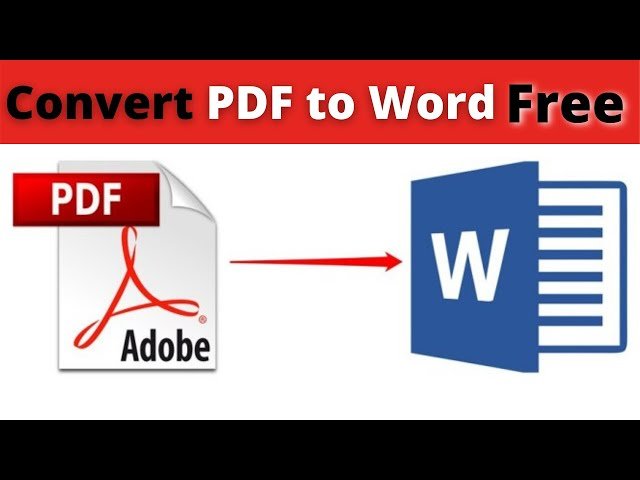
In this video the presenter demonstrates a straightforward way to convert a PDF into an editable Word document so you can make changes you need. To begin, open a Word window alongside the location of your PDF, then simply drag the PDF into the Word workspace. Word will automatically start the conversion process and create a new editable document that mirrors the original formatting as closely as possible. This method is useful for resumes, reports, or any document you need to tweak without recreating content from scratch.
Set up your workspace and prepare the PDF
First, locate the PDF file you want to convert. It helps to maximize the PDF window so you can clearly view what you’ll be transferring. The goal is to have the PDF ready for quick import, with any images or text clearly visible. You’ll also want to have Microsoft Word open so you can perform the import side-by-side with the PDF. This setup minimizes back-and-forth and makes the conversion feel seamless.
Import the PDF by dragging into Word
With Word open and the PDF visible, drag the PDF file from its folder and drop it into the Word document window. Word recognizes the PDF and initiates a conversion process, transforming the contents into an editable Word document. Depending on the document’s length and complexity, this may take a moment as Word reconstructs text blocks, images, and basic layout so you can edit freely.
Review the converted document and adjust formatting
After the conversion completes, inspect the resulting Word document. Most text should be editable and you can add or modify content directly. Some elements, like headers or section lines, may shift slightly; you may need to tweak alignment, adjust headers, or relocate elements to match the original layout more closely. If any text sits off a line or the header appears misplaced, you can correct these issues by editing the affected components or reformatting the surrounding layout to ensure readability and consistency.
Save options and final steps
When you are satisfied with the edits, save the document in Word format to preserve editing capabilities. You also have the option to export or save again as a PDF if you need to share a non-editable version. This two-step approach—edit in Word, then save as PDF—helps maintain a clean workflow and ensures the document remains accessible across systems that rely on PDF format.